Efficiently copying Data
Copying Data between elements was one of the biggest performance improvements that came with the tooling. As data flows throug the system, we inevitably have to copy data from element to element.
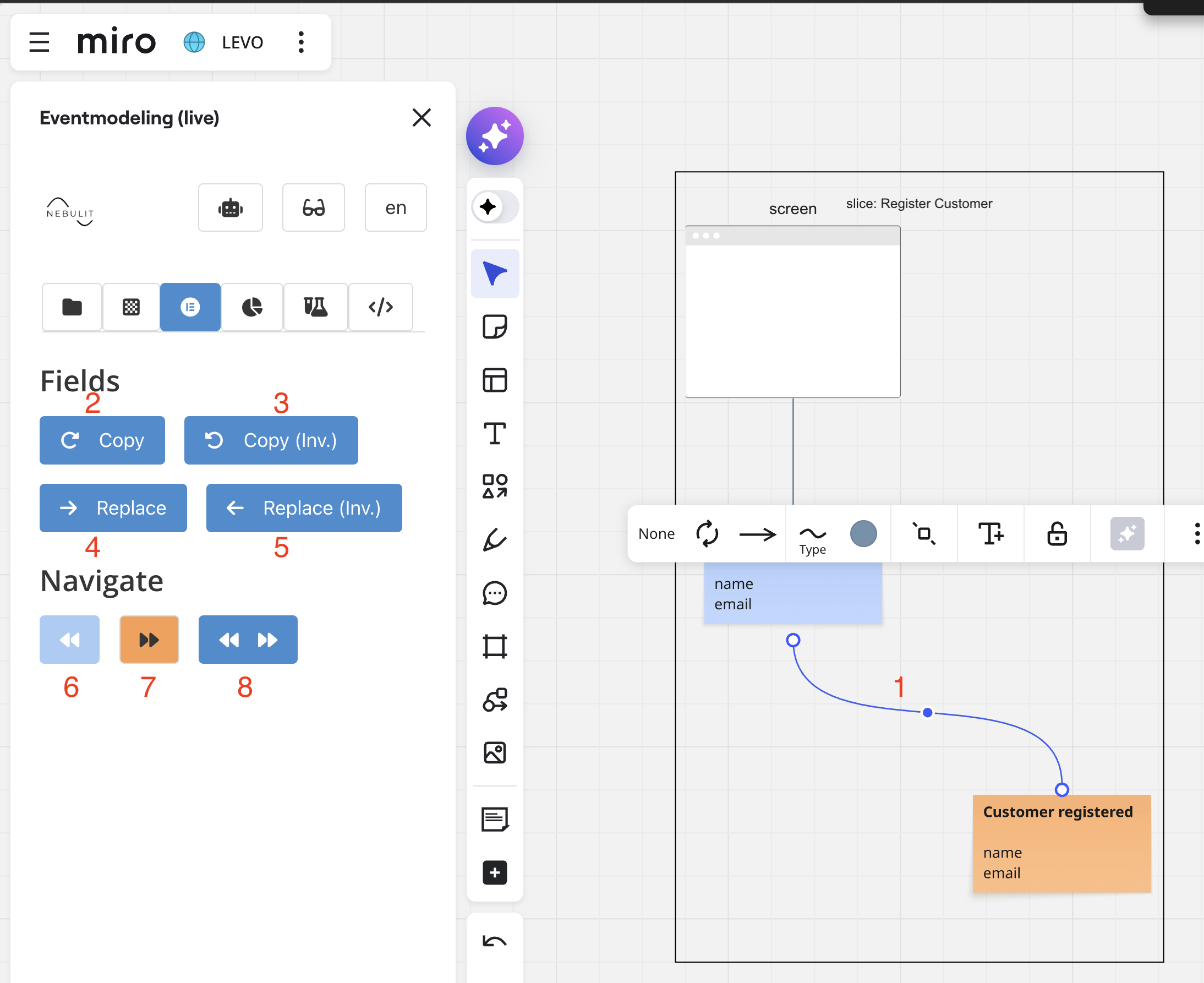
If you select a connection between two elements, the Connector View becomes available. Here you can efficiently copy between Elements.
1) select a connection
2) Copy Fields in the direction of the Arrow - here from Command to Event ( only fields which aren´t already in the Target Element
3) Copy Fields against the Direction of the Arrow - here from Event to Command ( if one element is empty, Fields are always copied from the other element ). Important - examples in the target element are kept.
4) Replace Fields in the direction of the Arrow - overriding everything in the target element - important - examples in the target element are overridden
5) Copy Fields against the direction of the Arrow - overriding anything in the target element
6) Zoom in on the start of the Connection
7) Zoom in on the end of the Connection
8) Zoom in on both start and end of the Connection
2-Elements Selected
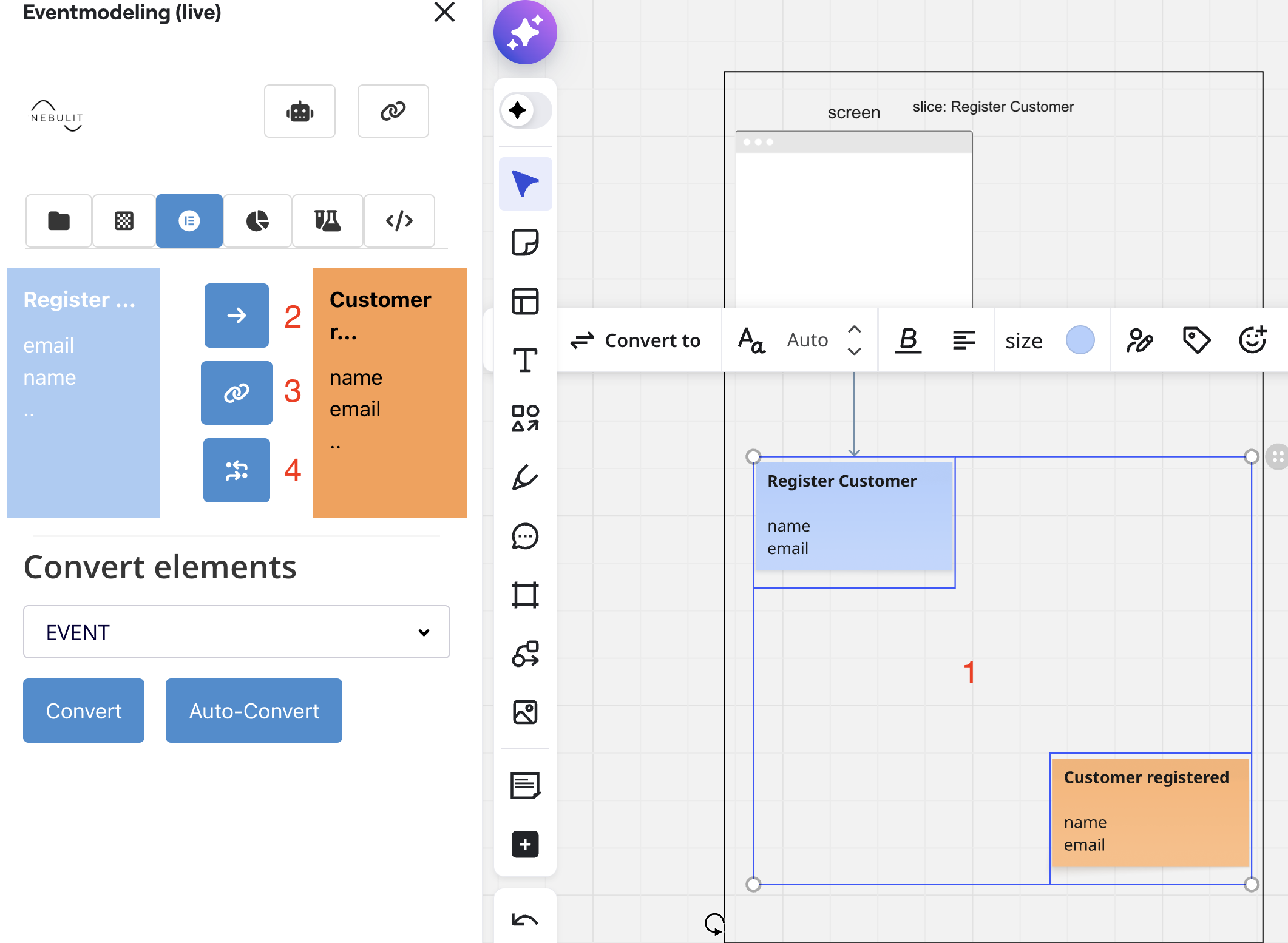
If you select exactly two elements, the Multi-Element View becomes Visible. It´s important which element you select first, this becomes the source. If you draw a selection around elements, the first element that is in the boundary becomes the first selected element.
1) Select two elements
2) Copy Data from source to target ( only fields which aren´t already there ). Important - Examples in the target element are kept
3) Make right element a linked Copy of the left Element. This allows you to make linked Copies extremely fast.
4) Draw an arrow from the left element to the right element. This allows you to draw Connections quickly even for elements which are far away from each other. Just select them and use this button.
Multi Elements Selected
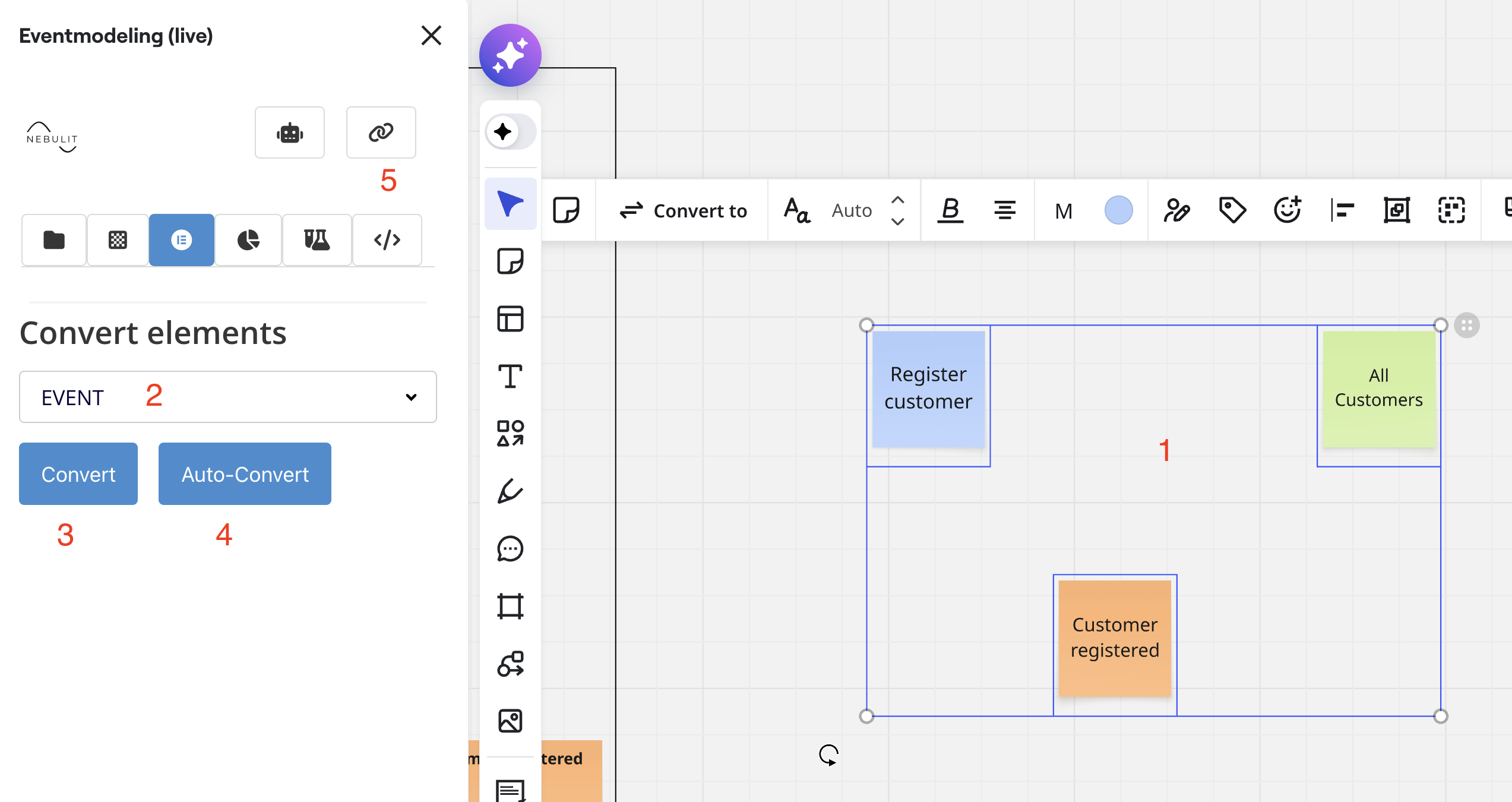
If you select multiple Elements ( 2 or more ), the Conversion View becomes visible. This view allows you to convert simple Sticky Notes to Tooling Elements ( with proper formatting and data )
1) Select multiple elements
2) if you want to convert any Element on the Board to a specific element type, use the selection here
3) Converts the element to the selection type from 2)
4) Convert elements automatically. Takes the color into account. Any blue stick notes becomes a Command automatically, any orange an Event and so on. ( Works only on Sticky Notes )
5) Connect all elements. Positioning is crucial, elements are only connected to elements further right. Never backwards.
Next Steps
- Slice View - Copying Data