Code View
Use this View to export an existing Model to JSON, Toon or Markdown.
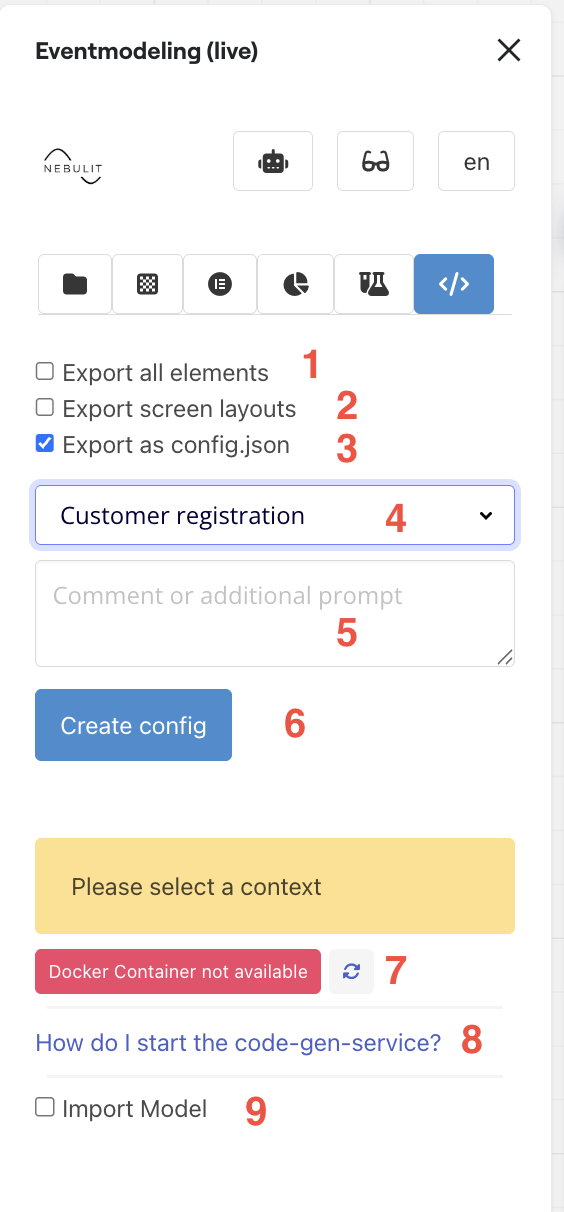
Key Features:
- Export all elements on the Board. Be careful with this, as this can use quite a lot of API Calls in Miro. For bigger Model, this might hit Rate Limits. I rarely use this.
- If you drew screens using the Screen Drawer, checking this will export the layouts within the JSON as well for usage by AI for example.
- Export the config file as “config.json”, if you uncheck, the file will be named after the Context. This is only relevant if you use the docker container to store the file locally.
- Select a Context. This will list all Contexts available on the Board.
- Here you can just provide an additional comment or prompt, that can be used by AI. This prompt will be part of the JSON and also sent via the API Calls to Lovable and other systems.
- Creates the configuration
- Indicates if the local docker container is running. You can start it and refresh until the notification turns blue.
- Here you’ll find instructions on how to start the local docker container.
- Model Import
Details Section
After exporting the configuration, you can access the details in the “details” section.
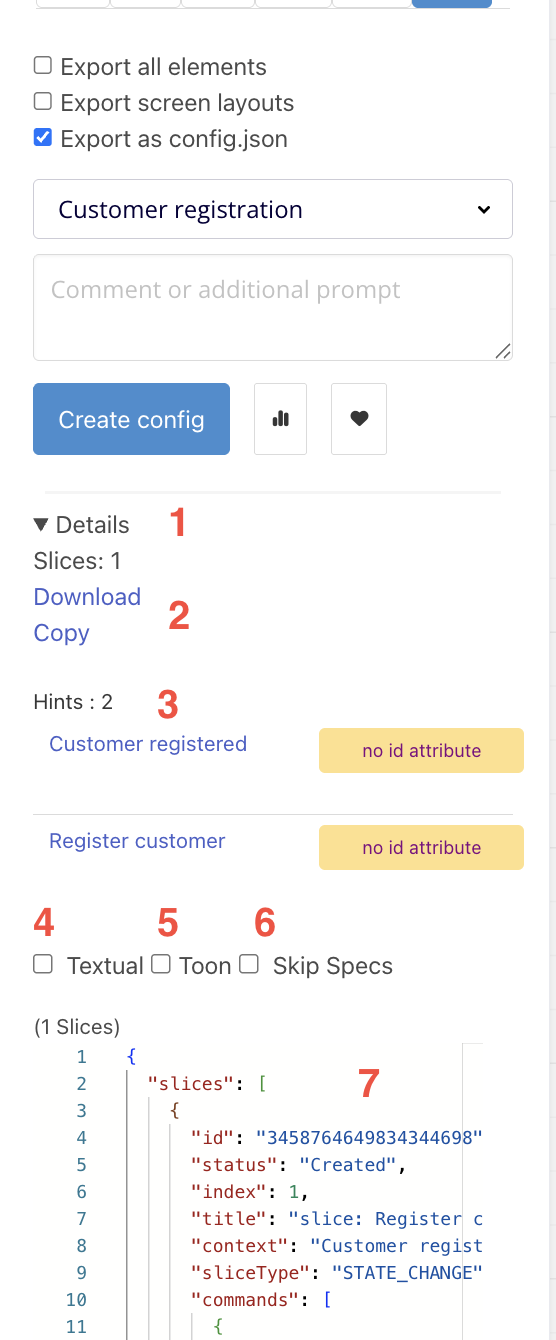
Details Section Features:
- Details Section after export
- Copy or Download the JSON
- Validation Hints - typically you’d want to resolve them before starting any Code Generation
- Markdown View (default if all unchecked is JSON)
- Toon View (default if all unchecked is JSON)
- Removes all Specs
- Here you see the data to be used by AI or Code generation
Model Import
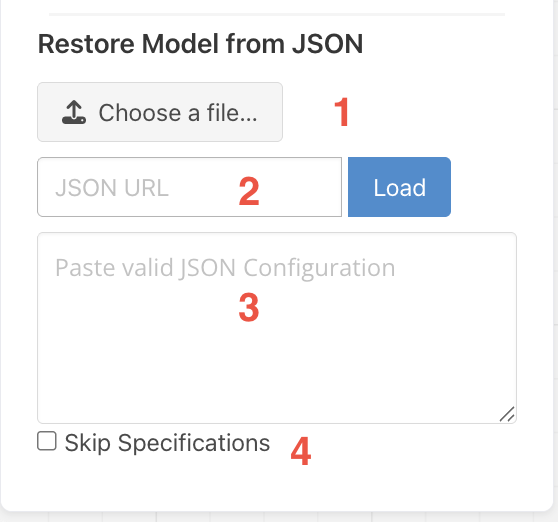
Model Import allows you to import an existing Model from JSON back onto the Board.
Import Features:
- Upload an existing JSON Config
- Reference a JSON Config by URL
- JSON Specification (editable)
- Skip Specifications from the Config File - only import Elements
Chrome Security Issues
For Some users, especially on Chrome there might be problems with the connection to the locally running Docker Container. This will be solved - until then you can easily check if you are affected by this.
Open this configuration in Chrome:
chrome://flags/#local-network-access-check

You can temporarily disable Local Network Access Checks to communicate with the Container.
Be careful, this should only be a temporary Workaround. Make sure to reactivate it, when you are done with your work.
Next Steps
- Spec View - Define Given/When/Then specifications
- Data View - Edit element schemas and configurations
- Elements View - Working with elements