AI Configuration
Configure your AI Model, Tokens and LLM settings to enable AI-powered features in the Event Modeling Toolkit.
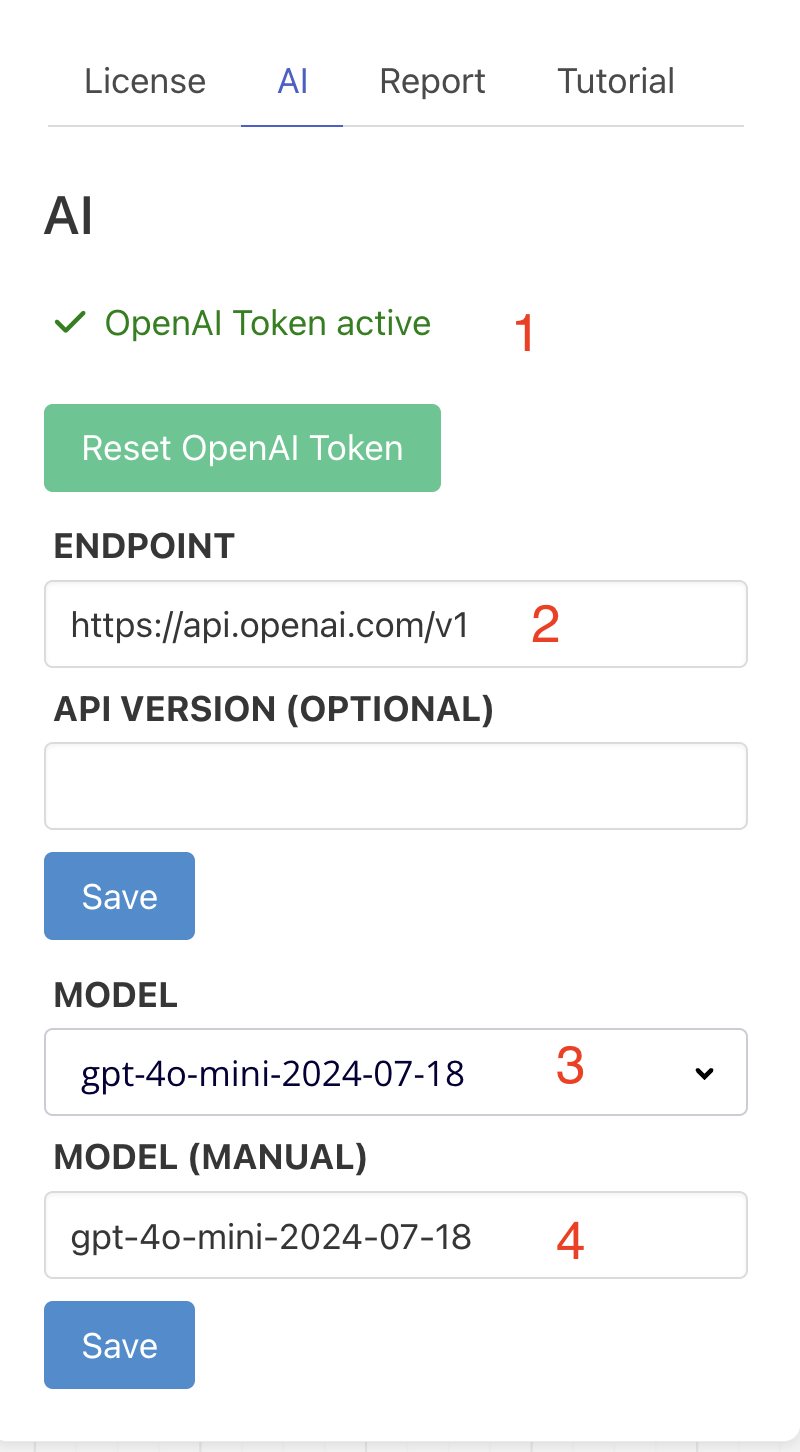
Supported AI Providers
The toolkit supports two major AI providers:
- OpenAI (GPT-4, GPT-3.5)
- Anthropic (Claude)
Configuration Steps
1) API Token
Provide your OpenAI or Anthropic Token:
- For OpenAI: Get your token from platform.openai.com
- For Anthropic: Get your token from console.anthropic.com
Important: Keep your API tokens secure and never share them publicly.
2) API Endpoint
Provide your endpoint here:
- For Anthropic: Typically
https://api.anthropic.com/v1/ - For OpenAI: Usually auto-configured, but can use
https://api.openai.com/v1/
3) Model Selection (OpenAI)
For OpenAI, you can choose your model directly from the dropdown:
- GPT-4 (recommended for best results)
- GPT-4 Turbo
- GPT-3.5 Turbo (faster, lower cost)
Note: This option is not available for Anthropic.
4) Model Version (Anthropic)
For Anthropic, choose your model version manually:
claude-sonnet-4-5-20250929(latest, most capable)claude-3-5-sonnet-20241022(highly capable, balanced)claude-3-opus-20240229(very capable)claude-3-haiku-20240307(fastest, most affordable)
AI Features Enabled
Once configured, you can use:
Chat with Your Model
- Ask questions about your event model
- Get insights and recommendations
- Query flows and business logic
- Learn more about AI Chat
AI-Assisted Modeling
- Generate event model slices from user stories
- Get suggestions for events, commands, and views
- Auto-complete attributes
- Explore AI Integration
Code Generation
- Generate code from your models
- Create specifications and documentation
- Build timelines and forecasts
- Code Generation Guide
Best Practices
Token Security
- Never commit API tokens to version control
- Rotate tokens periodically
- Use environment variables when possible
- Consider separate tokens for dev/prod
Model Selection
- For exploration and learning: Use GPT-3.5 or Claude Haiku (lower cost)
- For production modeling: Use GPT-4 or Claude Sonnet 4.5/3.5 (best accuracy)
- For rapid iteration: Use Claude 3.5 Sonnet (balanced performance and cost)
Cost Management
- Monitor your API usage in the provider dashboard
- Set spending limits in your provider account
- Consider caching responses for repeated queries
- Use smaller models for simple tasks
Troubleshooting
“Invalid API Key” Error
- Verify your token is correctly copied
- Check if the token has expired
- Ensure you’re using the right token for the selected provider
“Rate Limit Exceeded”
- Your API account has hit its usage limit
- Wait and try again, or upgrade your provider plan
- Check your provider dashboard for limits
“Model Not Available”
- The selected model may not be available in your region
- Try a different model version
- Check your provider account for model access
Connection Errors
- Verify the endpoint URL is correct
- Check your internet connection
- Ensure your firewall allows HTTPS requests to the API
Next Steps
- Use AI Chat - Start chatting with your model
- AI Integration Guide - Explore all AI features
- Generate Specs - Create documentation with AI
- Model with AI - Build slices using AI