Information Completeness
The color of the arrows show, how information is flowing in the system.
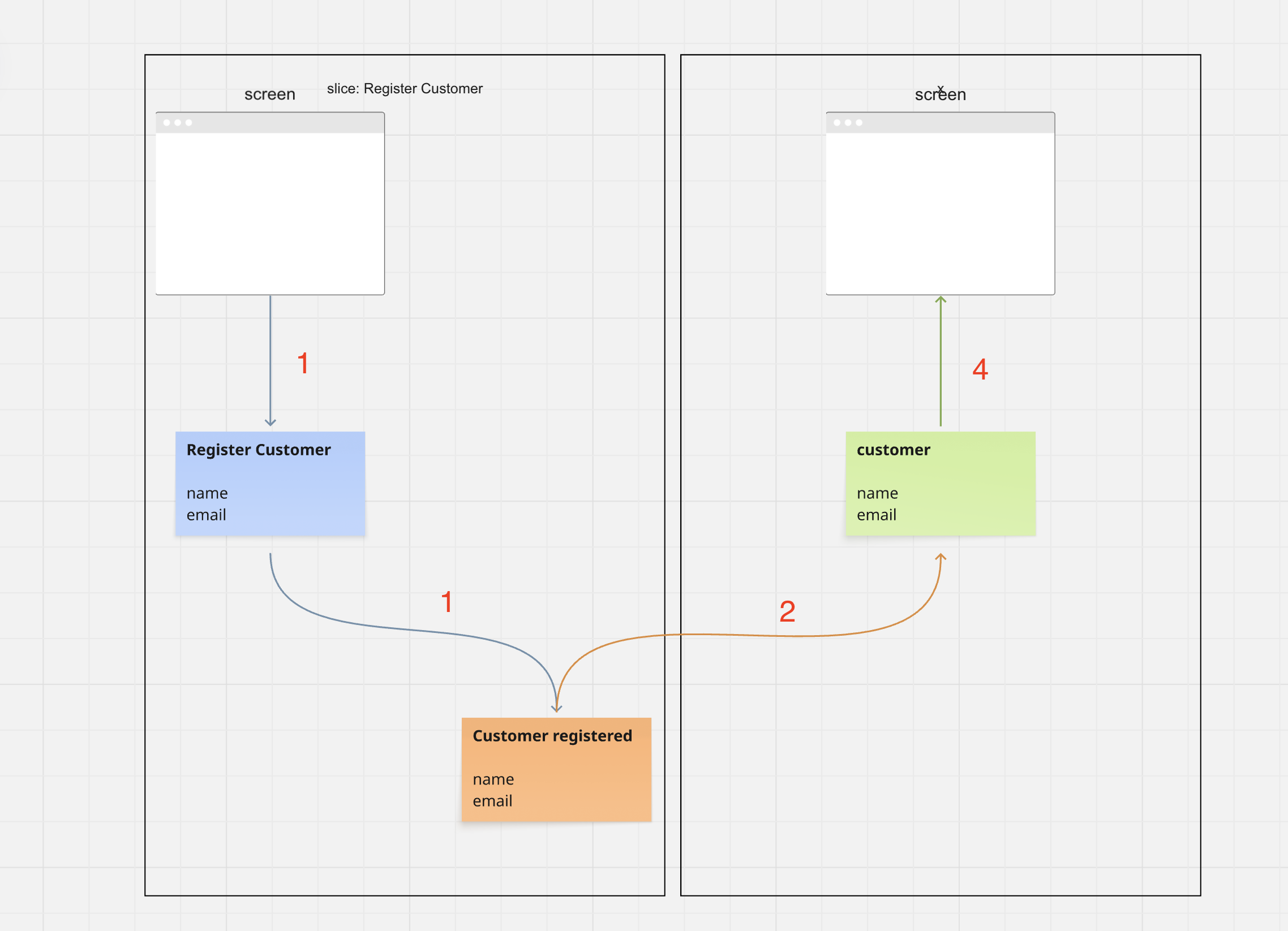
1) + 2) Blue Arrows indicate incoming information ( how does information get into the system )
3) Organge Arrows indicate Events connected to Read Models ( how is information used )
4) Green Arrows indicate Read Models connected to Screens or Automations ( where is information used )
Information completeness shows you potential gaps in your analysis / modeling very early. At all times we try to keep our models information complete. In practice this means, we define clearly where information we use is coming from.
For each element, the tooling analyzing incoming connections and checks, if all fields in the element can directly be mapped from any connected element ( only looking at the attribute name )
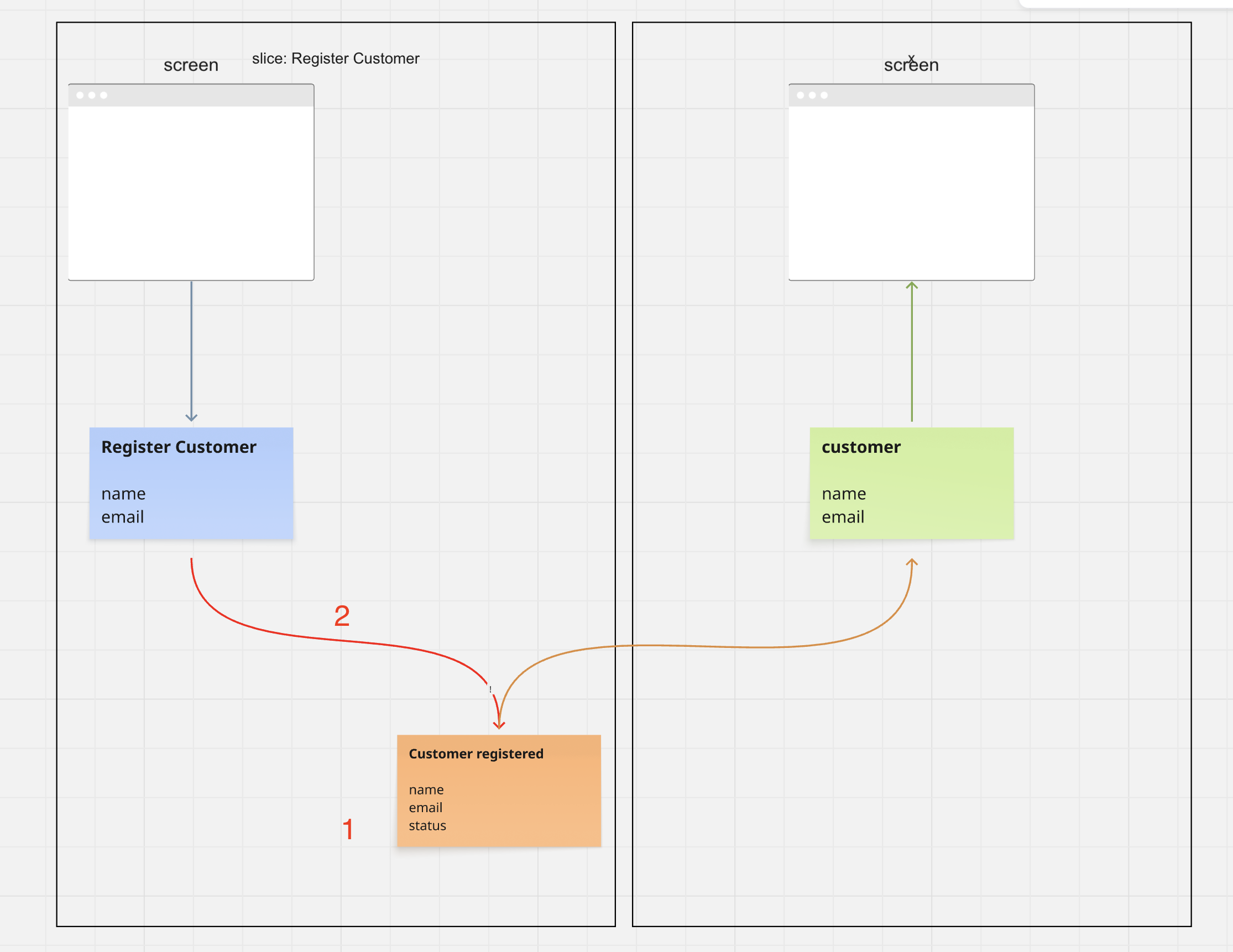
In this example the “Customer Registered” Event defines a status field, but it is not defined where this information is coming from. This is a failed information completeness check and the arrow is thus marked red ( including a “!” sign for color-blind people )
Using Element References
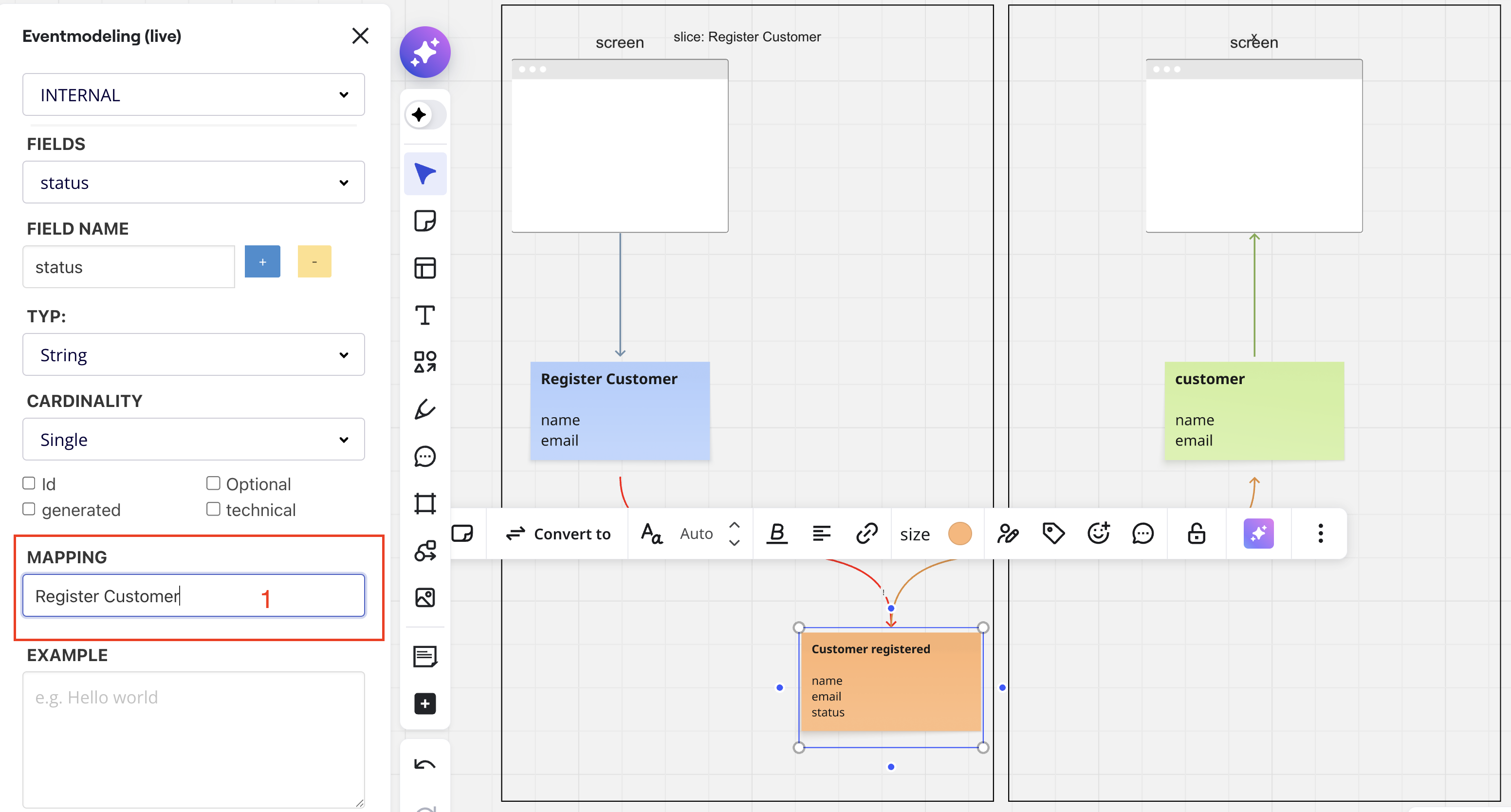
To resolve this you select the target element ( in this case the Event ) and you define a “Mapping” on the Field.
In this case, we know status is “calculated” from the Register Customer Command. Typically you would place the Name of an Event here.
Typical example is a status-Field and a “Customer activated” Event that is used to determine the status. To indicate this, you can just put the Element Name into the Mapping Field.
Using Direct Mappings
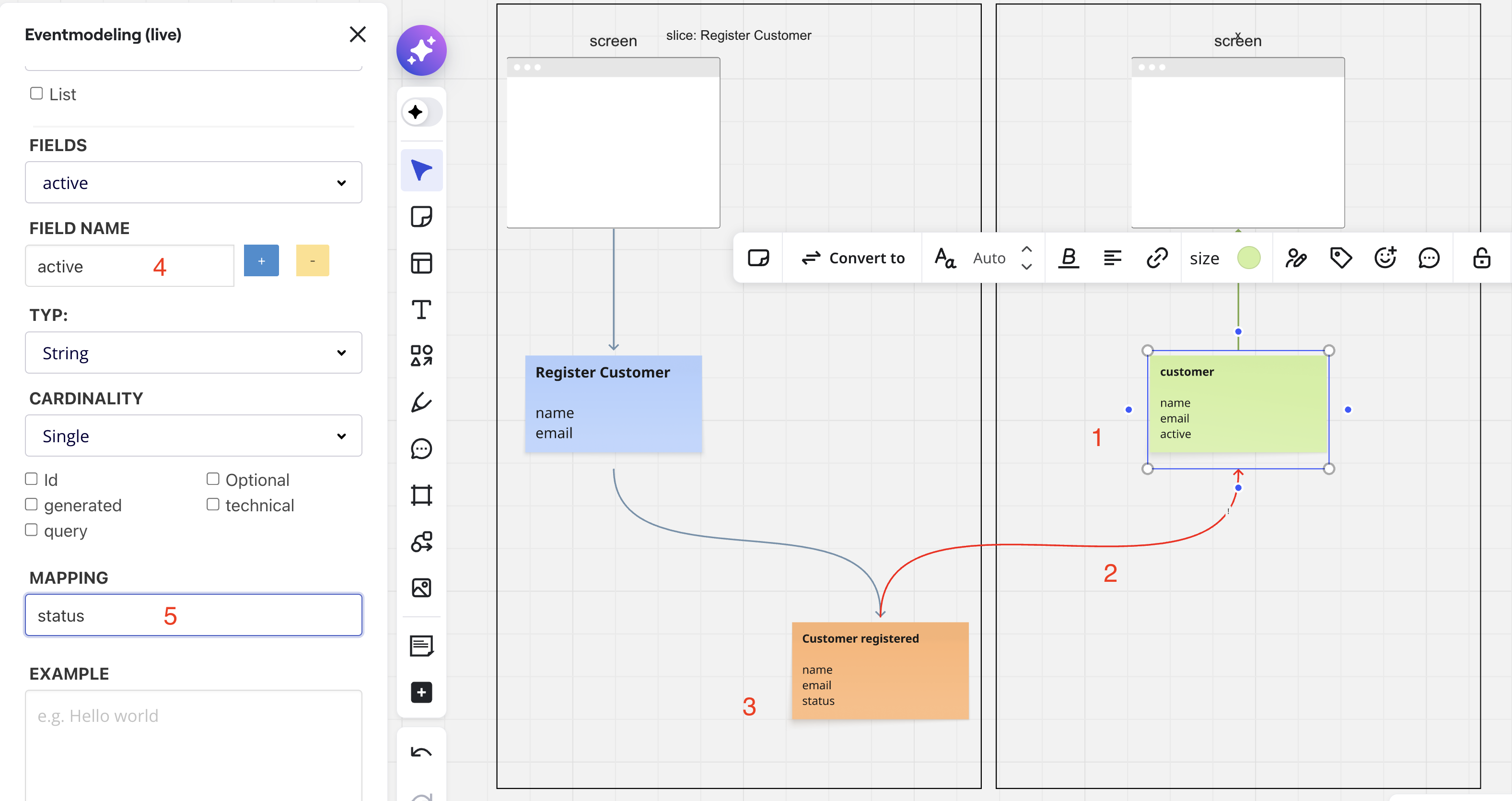
In this case the Read Model defines a new Field “active”, again not directly mapped from an incoming element.
In this case we also need to define the mapping, using the name of the field that is used to map the data. Since in this case we know the “active” flag is mapped from the status, we can just put in the status field as a mapping.
Information Completeness Overview
Sometimes it´s not immediately clear, why an information completeness check fails. You find more details by selected the target element and activating “Documentation”
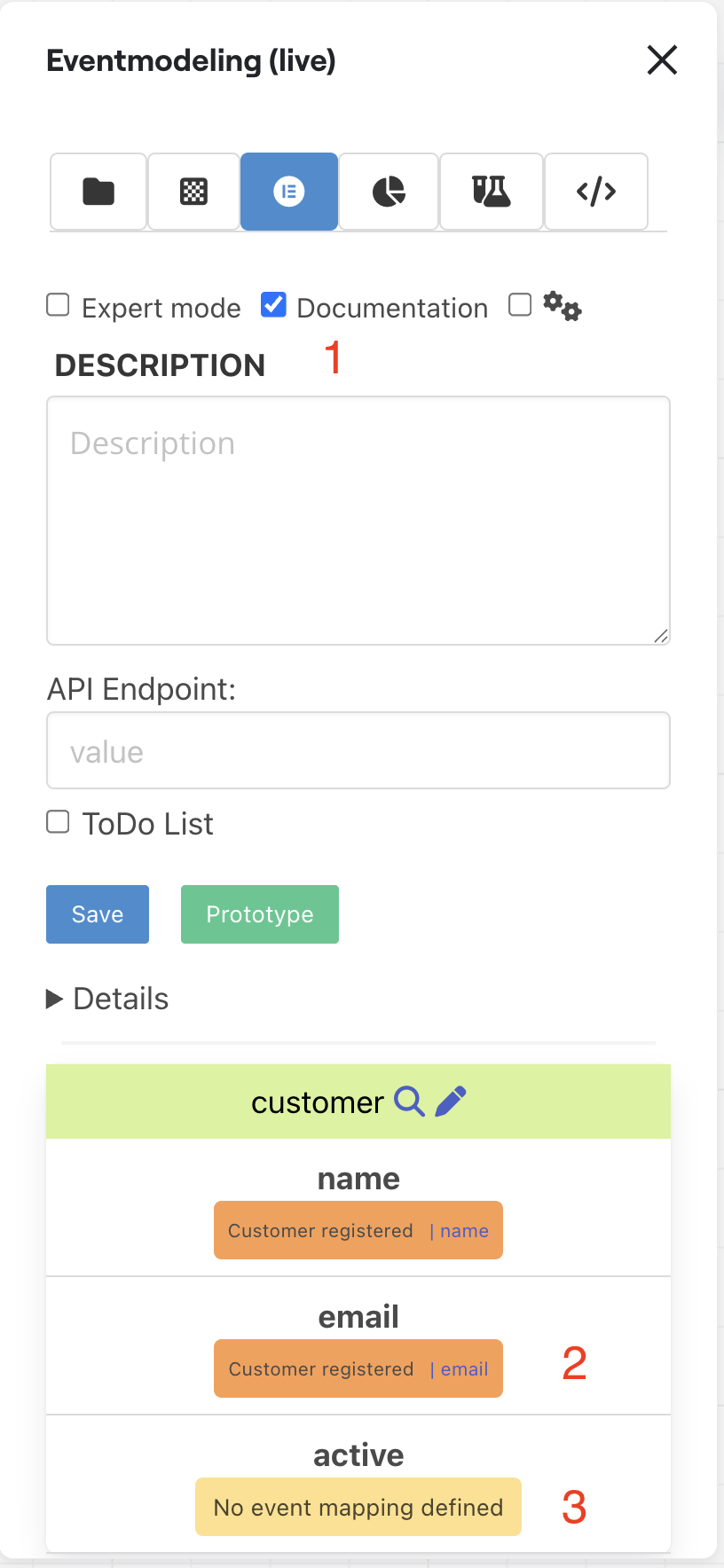
1) open documentation view
2) Mappings show you where data is mapped from ( in this case, email is mapped from “Customer Registered” / field email )
3) active Flag has no mapping, that is why the arrow is marked red.
Revalidating Elements
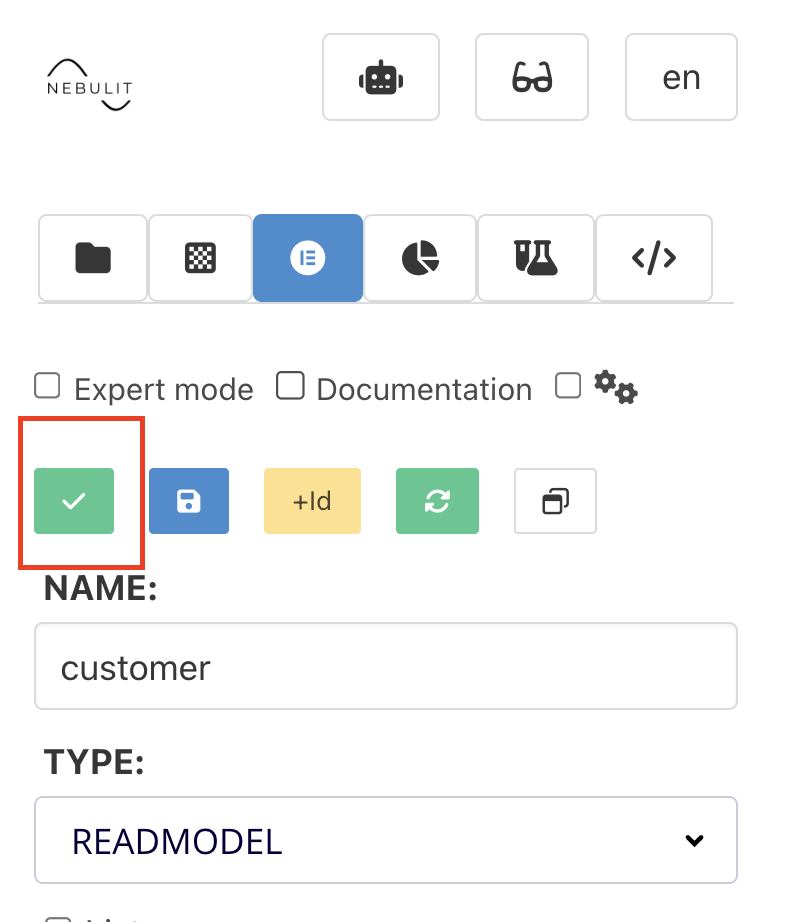
Sometimes Miro does not immediately turn arrows back to normal color, even if information completess looks fine. In this case you can just manually revalidate the element.
- Copying Field - Selecting / Copying Elements